Attendance Tracking for Small Teams: A Practical Guide
How to set up attendance tracking that works for a small team: configuring work schedules, automatic late detection, check-in/out, holidays, and clean CSV/PDF reports for payroll.
S
SimpleHR Team
SimpleHR
For a small team, attendance tracking is rarely about policing clocks. It’s about answering three simple questions: who’s here, who’s not, and who has time off coming up. Get those right, and you save hours of manual record-keeping while keeping payroll on solid footing.
The key is to configure the system once so it does the heavy lifting, then let employees check in and out from a widget while you watch the analytics. Here’s how to set that up properly.
Start with your work schedule
Everything in a good attendance system flows from the work schedule you define. In SimpleHR, that lives under Settings → Work Schedule, and it drives when records are created and whether a late check-in is flagged automatically.
Work days: which days of the week are working days (Monday–Friday by default, fully customizable).
Work hours: start and end times, e.g. 09:00–17:00.
Grace period: a window after start time (default 15 minutes) where checking in still counts as on time.
Automatic late detection: when on, employees who check in after the grace period are marked LATE instead of PRESENT.
How late detection works
If work starts at 09:00 with a 15-minute grace period, a check-in at 09:10 is PRESENT, but a check-in at 09:20 is LATE. The system records exactly how many minutes late, which is useful for payroll and policy enforcement.
Add holidays so the calendar stays accurate
Public holidays are managed in the Holidays section. The attendance system recognizes them automatically: on a configured holiday, no automatic ABSENT record is created (unless you specifically choose to “ignore holidays”).
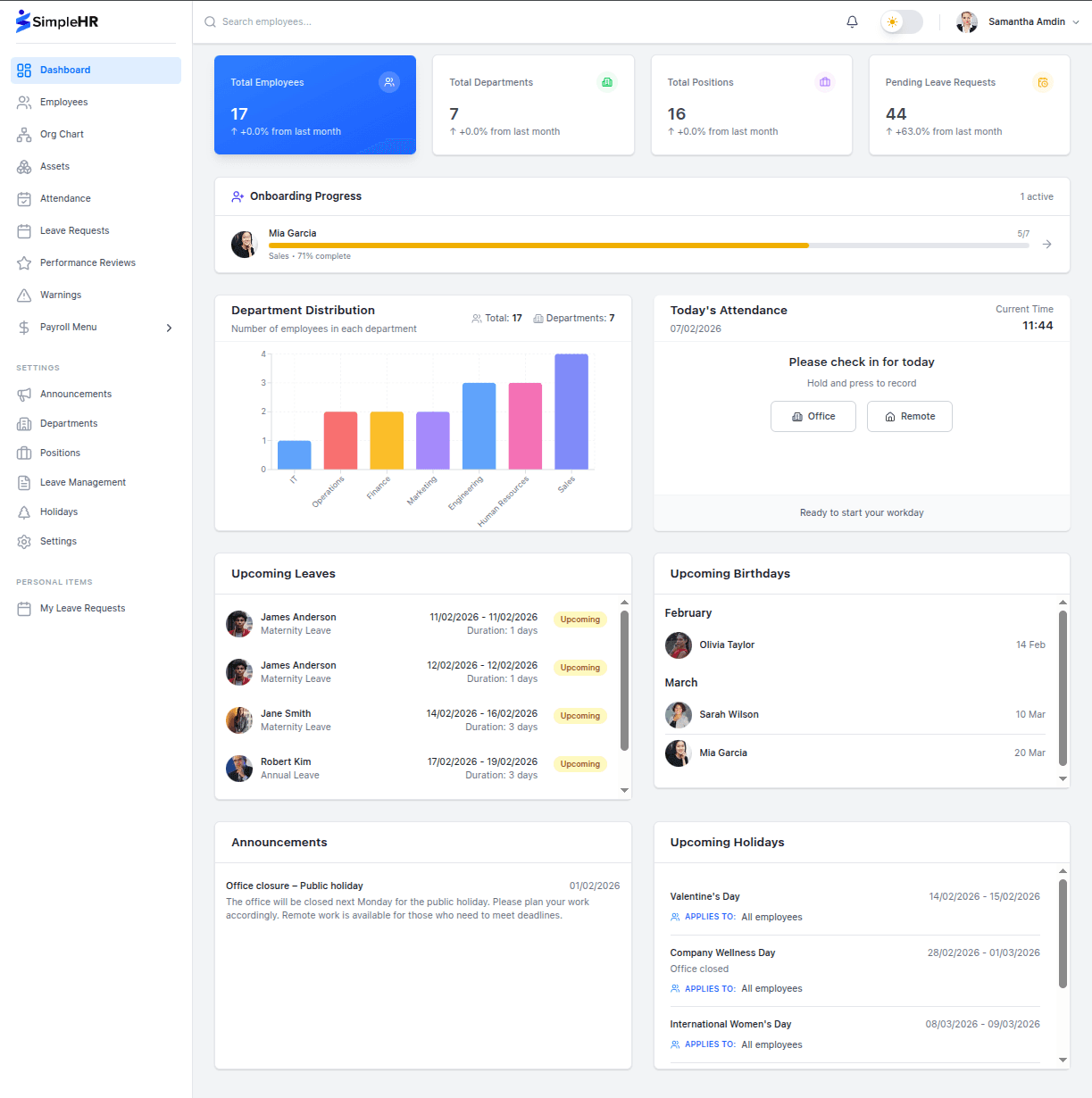
Holidays are for reference and planning across the company (everyone can see upcoming holidays on the dashboard), and they don’t add or remove anyone’s leave balance.
Employees check in and out from the dashboard
Checking in should take one gesture, not a spreadsheet. Click and hold the work location (Office or Remote) until the action completes.
SimpleHR puts an Attendance Widget on the dashboard. Employees check in (choosing Office or Remote) and check out at the end of the day. If an employee is on leave, their status for that day is set to “On Leave” automatically, with no manual fix-ups needed.
Two views, one source of truth
View
Who sees it
What it shows
Employee view
Each employee
Own records, monthly calendar, check-in widget
Admin/Manager view
Admins & managers
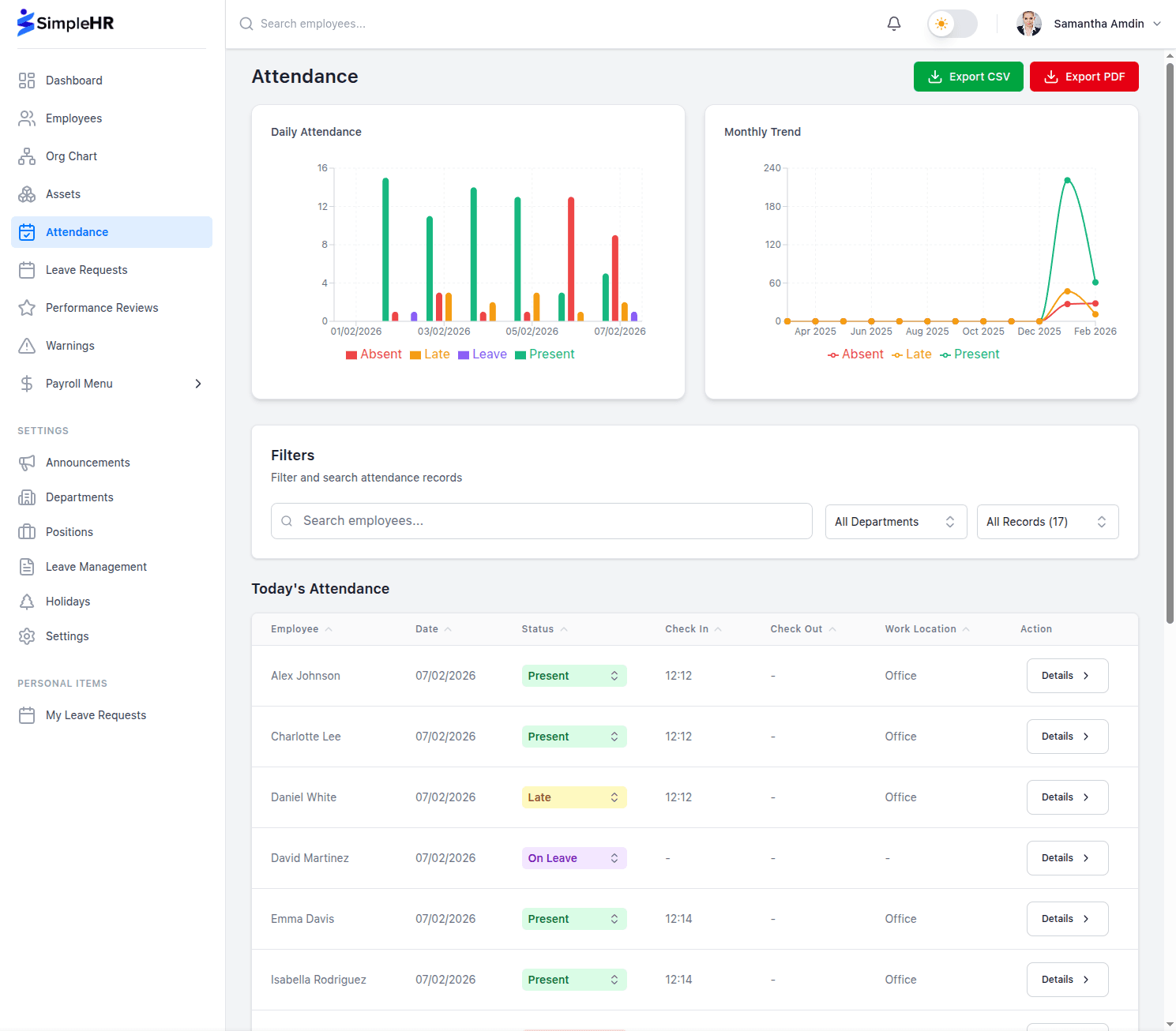
Today’s attendance for everyone, analytics, filters
Admins and managers can update today’s status for any employee directly from the table, but past records are view-only, which keeps the history trustworthy. A Detail button opens any employee’s historical attendance at a glance.
Export clean reports when it matters
Whether it’s a monthly payroll review or a conversation with an employee, you’ll want the numbers out of the app. Attendance exports cover a single date or a date range, respect your current filters, and come in two formats.
CSV for Excel or Google Sheets, with every record including names, dates, status, check-in/out times, work location, and notes.
PDF formatted in portrait with summary statistics and page numbers for sharing or filing.
Set it up once, in nine steps
Configure work days and hours in Settings → Work Schedule.
Set the late grace period and enable automatic late detection.
Add public holidays in the Holidays section.
Review today’s table (everyone for admins, yourself for employees).
Update today’s status as needed; past days are read-only.
Use quick filters to focus on a specific status.
Watch the analytics dashboard for trends.
Have employees check in/out from the dashboard widget.
Export CSV or PDF reports for payroll and records.
Frequently asked questions
What happens if an employee doesn’t check in?
On a configured work day that isn’t a holiday, the system creates an automatic ABSENT record. Admins and managers can also correct today’s status manually.
Can employees see each other’s attendance?
There’s an attendance visibility setting you control. By default employees see their own records, while admins and managers see everyone according to their role.
What if we work weekends or irregular days?
Work days are fully customizable: you can make the team five days, seven days, or any combination, and the system respects that schedule.
Can I mark someone LATE manually?
Yes. If automatic late detection is off, admins and managers can assign the LATE status manually from the attendance table.
The bottom line
Good attendance tracking is configuration-first: define your schedule, add your holidays, and let the system keep records while employees check in with a tap. Set it up once, and you get accurate timesheets, fair late policies, and clean reports for payroll, without re-creating the wheel every morning.