How to Set Up HR Data: A First-Week Guide for New HR Software
From the setup wizard to departments, positions, employees, and CSV import: a practical, first-week roadmap for getting your employee data into HR software so your team can actually use it.
S
SimpleHR Team
SimpleHR
Setting up a new HR system can feel like moving into an empty office: exciting, but with a lot of boxes to unpack. The good news is that with the right approach, you can go from a blank screen to a fully populated employee directory in an afternoon, without hiring a consultant.
This guide walks through the practical first steps for getting your company data into HR software so your team can actually use it: configuring your organization, creating departments and positions, adding employees (one by one or in bulk), and setting up onboarding tasks that make new hires productive from day one.
Start with the setup wizard
Most modern HR tools guide you through initial configuration instead of leaving you to wander through menus. SimpleHR opens with a step-by-step setup wizard that walks you through your company details, admin account, and core preferences before you manage a single employee record.
Why the foundation matters
The details you enter in the first ten minutes (company name, default language, work schedule, currency) ripple through every screen your team sees later. Getting them right up front avoids confusing inconsistencies further down the line.
Configure your company basics
Company info: name, industry, address, phone, website, and logo.
Localization: default language and currency so dates, numbers, and pay display consistently.
Work schedule: which days are working days and your core hours. This is what attendance late detection uses.
Email (SMTP): so the system can send 2FA codes, notifications, and payslips. Without it, features like two-factor authentication won’t work.
Build your organization structure
Departments must be created before employees can join them. The same is true for positions.
Departments: name, description, an optional manager, and a color used across charts and analytics.
Positions: job titles such as “Account Executive” or “Senior Developer,” each with a short description.
Task
Where
Why it matters
Add departments
Departments page
Employees must belong to a department first
Add positions
Positions page
Defines each employee’s job title or role
Add employees
Employees page
Populate your company directory
Set holidays
Holidays page
Feeds attendance and the upcoming-holidays widget
Add employees, individually or in bulk
You have two routes into your employee directory. For a first system, individual entry keeps things tidy. For an existing team with a spreadsheet of records, CSV import is the fast path.
Individual entry lets you capture everything in one profile: personal details, employment type and status, manager, bank and tax information, and emergency contacts. Sensitive financial and identification fields (such as social security and tax IDs) are encrypted at rest when you enable field-level encryption.
Import employees with CSV
If you’re coming from a spreadsheet (and most small businesses are), CSV import gets you most of the way there in one step. Download a template, fill or map your columns, and upload. New employees are created in bulk, and you can even send invitation emails tailored to each person’s preferred language.
SimpleHR creates new employees with 2FA enabled by default (you can toggle this per employee). A 6-digit verification code is emailed on login, but only if SMTP is configured. Verify email settings before you invite everyone.
Set up onboarding tasks
Onboarding runs off a simple, trackable list of tasks per employee: set up the laptop, complete compliance training, schedule the intro meeting. Admins and managers create tasks with due dates, and progress is calculated automatically as each task is completed.
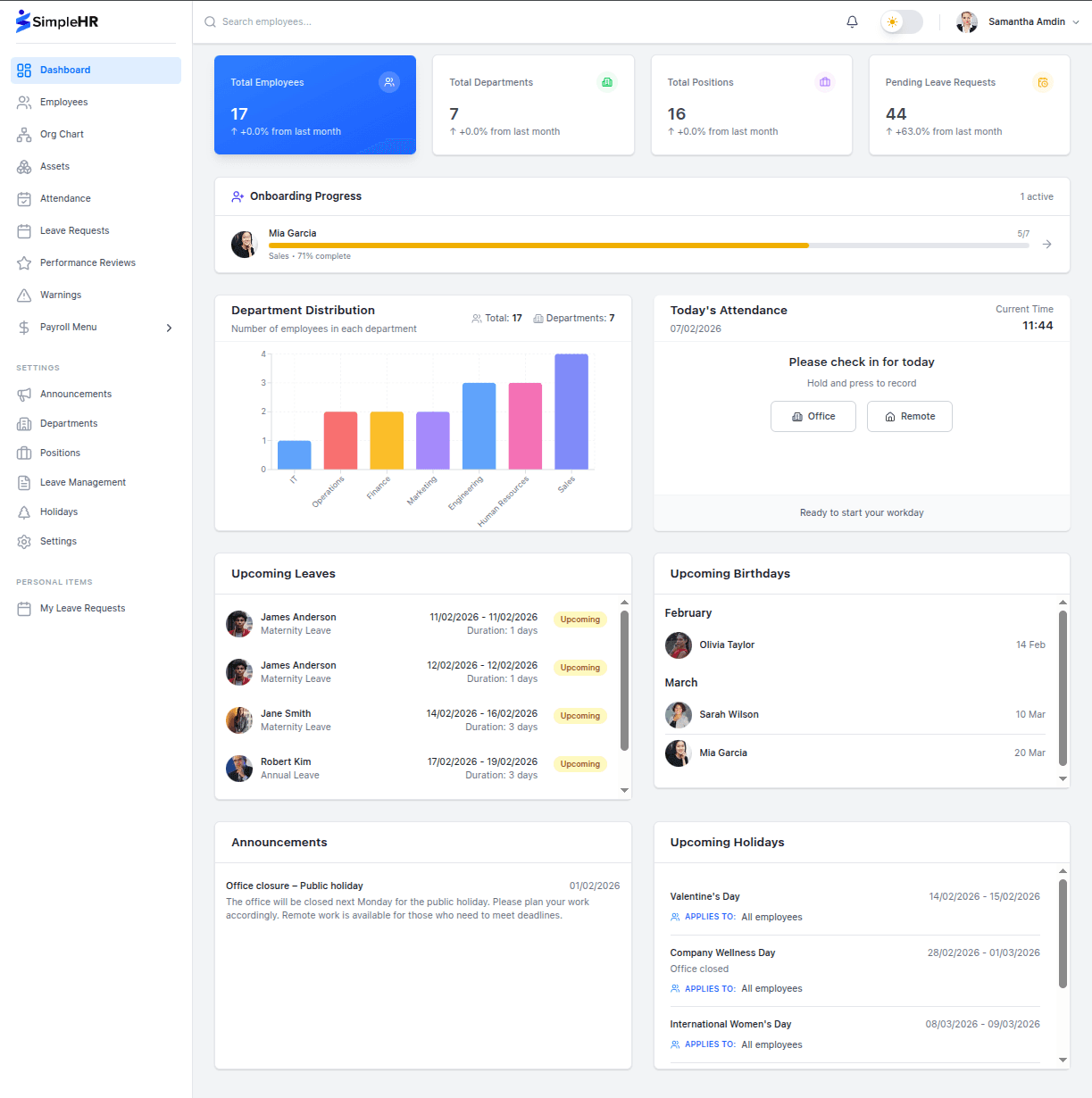
The dashboard even shows an Onboarding Progress widget (for managers and admins) listing employees still mid-onboarding with color-coded progress bars, so nothing slips through the cracks when you hire several people at once.
Frequently asked questions
Do I have to add departments and positions before employees?
Yes. Employees are assigned to departments and positions, and both must exist first. It takes a couple of minutes and prevents messy records later.
Can I import all my employees at once?
Yes. Use CSV import with a downloadable template. Bulk creation and per-language invitation emails are supported.
Is sensitive employee data encrypted?
When field-level encryption is enabled, sensitive fields such as social security numbers and tax IDs are encrypted at rest with AES-256-GCM. See the data encryption guide for setup.
Why won’t two-factor authentication work?
2FA requires working email (SMTP) configuration. If email isn’t set up, the system disables 2FA and users can’t enable it until email is configured.
The bottom line
A clean setup is really a two-step story: configure the organization once, then load your people. With a setup wizard, departments and positions to lean on, and CSV import for speed, you can have a complete, accurate HR directory in an afternoon, and be ready for everything that comes after.