Role-Based Access Control and Manager Permissions, Explained
How fine-grained roles keep HR data private without slowing your team down: admins, managers, and employees each see only what they need, and managers get tunable permissions.
S
SimpleHR Team
SimpleHR
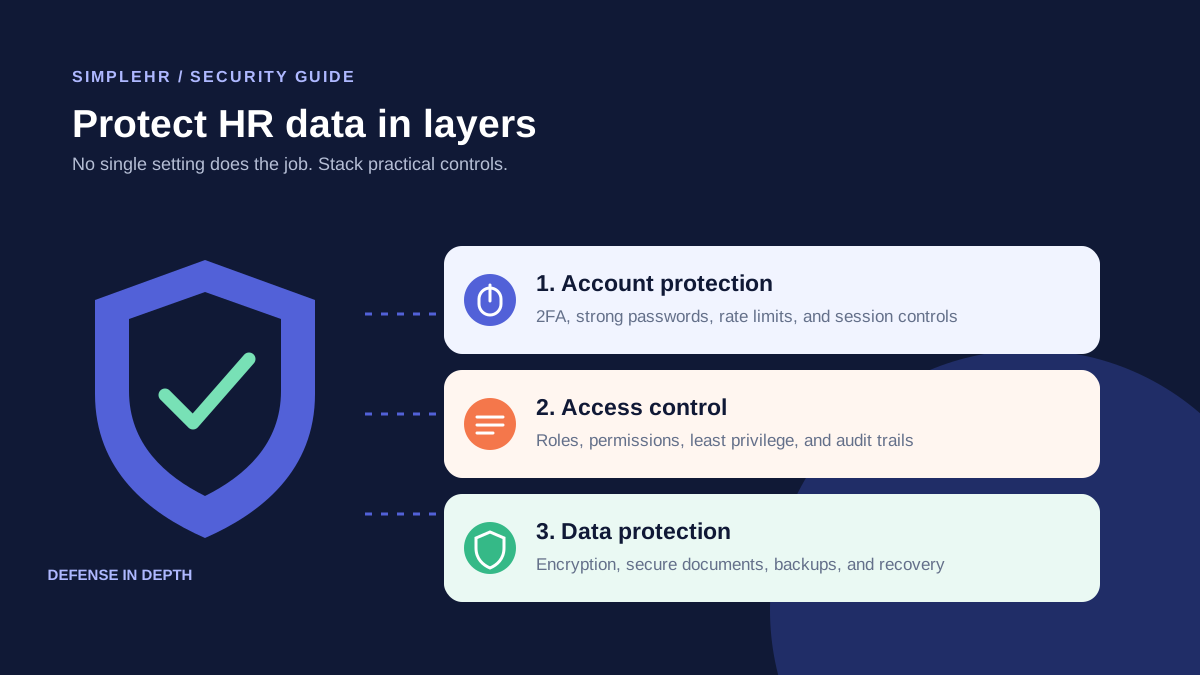
HR data is sensitive by nature (salaries, health information, personal identifiers). But locking everything down so tightly that HR can’t work is just as bad as leaving it open. Role-based access control (RBAC) strikes the balance: everyone sees exactly what they need, and nothing they don’t.
Here’s how RBAC works in practice, and why the details matter more than you’d think.
Three roles, each with a distinct view
Role
Typical visibility
Example
Admin
Everything in the company
All employees, all modules, settings
Manager
Own team + self
Subordinates’ records, approvals
Employee
Only themselves
Own profile, own requests
An employee can view and update their own profile, check their leave balance, and see their own requests. A manager can view and approve requests for their direct reports, but not the whole company. An admin sees across the organization and controls settings.
Granular permissions for managers
A one-size-fits-all “manager” flag is rarely right. Different managers have different responsibilities, so SimpleHR’s Manager Permission System lets you configure exactly what a manager can do, permission by permission.
View or edit payroll for their team.
Access personal data and sensitive details.
Approve leave, payments, and other requests.
Manage documents and onboarding.
Handle warnings and disciplinary actions.
Tune it, don’t just switch it on
You can give one manager the ability to approve leave but not touch payroll, and another manager broader authority. That granularity keeps data private without slowing down routine approvals.
Feature management keeps things simple
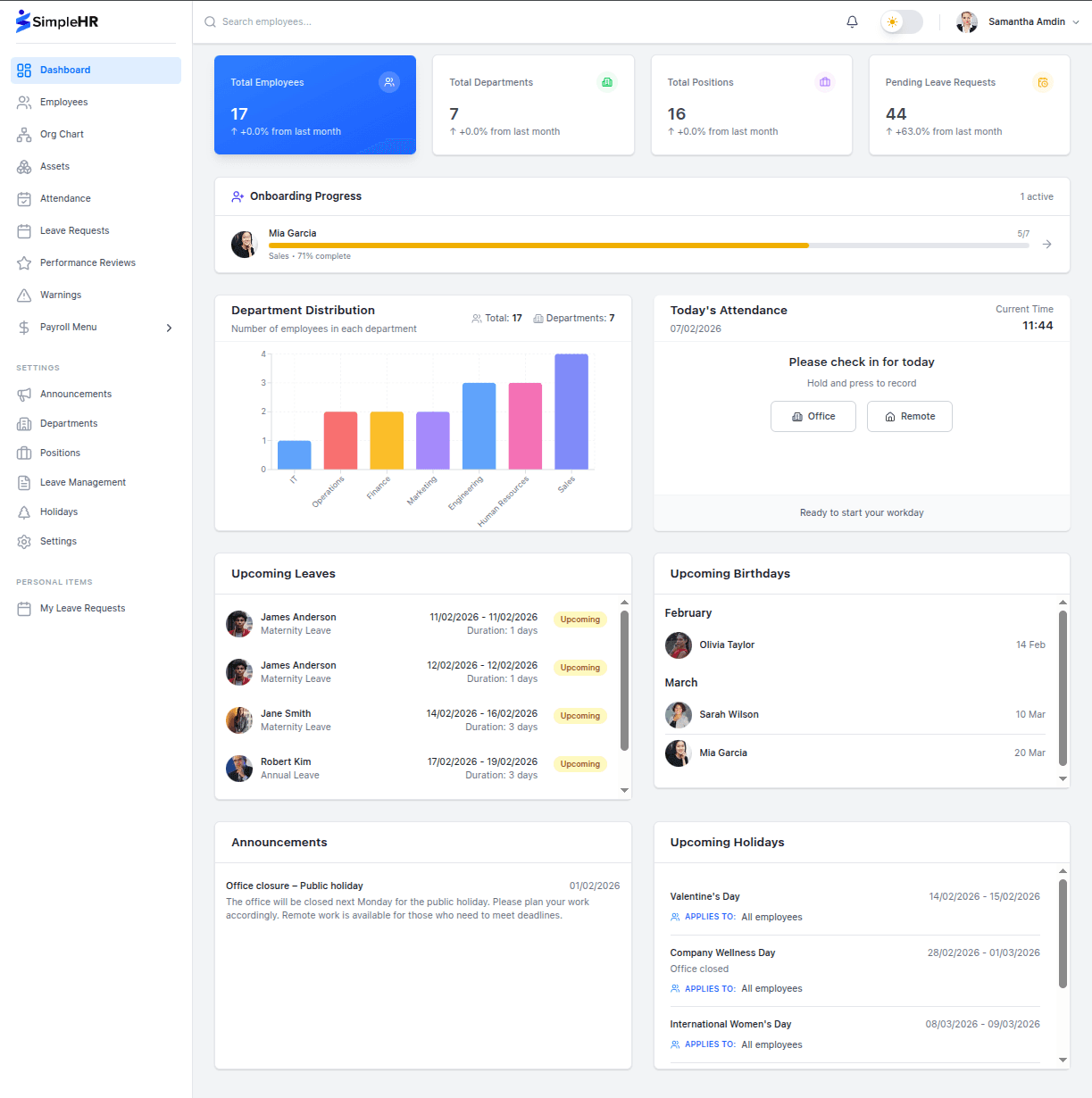
RBAC is about more than protecting data; it’s also about keeping the UI uncluttered. Feature management lets you enable or disable entire modules (leave, payroll, attendance, expenses, warnings, and more) from Settings.
Disable a module and its pages and dashboard widgets disappear for everyone. That’s useful when your company doesn’t use overtime yet, or you’re phasing in a new module and don’t want to confuse people with inactive menus.
The right access model doesn’t just stop people from seeing too much. It stops people from seeing things they don’t need to, which keeps the tool faster to use, too.
Editing with intent: the “edit mode” pattern
An underrated part of good access control is preventing accidental edits. In SimpleHR, sensitive actions (changing security settings, uploading documents, managing onboarding tasks) require entering edit mode first. Views stay read-only by default, so a stray click can’t change a record.
Action
Default state
Change requires
View employee data
Read-only
None
Update profile info
Read-only
Edit mode
Reset password / toggle 2FA
Read-only
Edit mode + role
Upload / delete documents
Read-only
Edit mode + permission
Frequently asked questions
Can a manager see employees outside their team?
By default, no. Managers see their own records and those of their direct subordinates. Admins have company-wide visibility.
Can I grant a manager permission to see payroll but not others?
Yes. Manager permissions are granular and configurable per role; you decide which modules and actions each manager can access.
How do I hide modules we don’t use?
Use feature management in Settings to enable or disable modules. Disabled modules are hidden for all users, including their dashboard widgets.
What protects against accidental edits?
Sensitive actions require entering edit mode first, and views default to read-only. Role checks also gate what each user can actually change.
The bottom line
Role-based access control is how you keep HR data private without making the tool painful to use. Clear roles, granular manager permissions, feature management, and intentional editing give you control where it counts, and simplicity everywhere else.